Simple MQTT Tutorial
-
Hi All,
Figured this code may help those relatively new to Pycom/Micropython/MQTT. It's a simple way to quickly get Mqtt publishing on your WiPy or LoPy board. I used the Hive Mq broker for demo purposes:
http://www.hivemq.com/demos/websocket-client/
-
Make sure the WiPy is connected over serial to Pymakr ( sometimes restarting Pymakr gets things going if it can't detect it).
-
Download the UMQTT Library that is available here: https://pypi.python.org/pypi/micropython-umqtt.simple and open simply.py
The library on the whole is pretty good, but there is a bug on line 57. Make sure to change:
self.settimeout(self.timeout)To
self.sock.settimeout(self.timeout)Go ahead and save the Library but rename it so umqtt instead of simple.py
- Open Pymakr to start building your main script. Create a new project (Mqtttest or whatever)
from network import WLAN
from umqtt import MQTTClient
import machine
import time

def settimeout(duration):
     pass

wlan = WLAN(mode=WLAN.STA)
wlan.antenna(WLAN.EXT_ANT)
wlan.connect("yourwifinetwork", auth=(WLAN.WPA2, "wifipassword"), timeout=5000)

while not wlan.isconnected():
     machine.idle()

print("Connected to Wifi\n")
client = MQTTClient("joe", "broker.hivemq.com", port=1883)
client.settimeout = settimeout
client.connect()

while True:
     print("Sending ON")
     client.publish("/lights", "ON")
     time.sleep(1)
     print("Sending OFF")
     client.publish("/lights", "OFF")
     time.sleep(1)
After inputting your WIFI and broker details, go ahead and choose a publish topic of your choice, along with a message
-
Almost ready to give it a try! Next connect to your WiPy over WIFI and FTP into the /lib folder. I use Fillezilla for this. Upload our renamed library umqtt to the /lib folder on the board.
-
Make sure the WiPy is connected over serial to Pymakr ( again a restart may help this). Then hit the play button to upload your script to the board . You should see the Wifi connected printed in the console, and then the while loop commence.
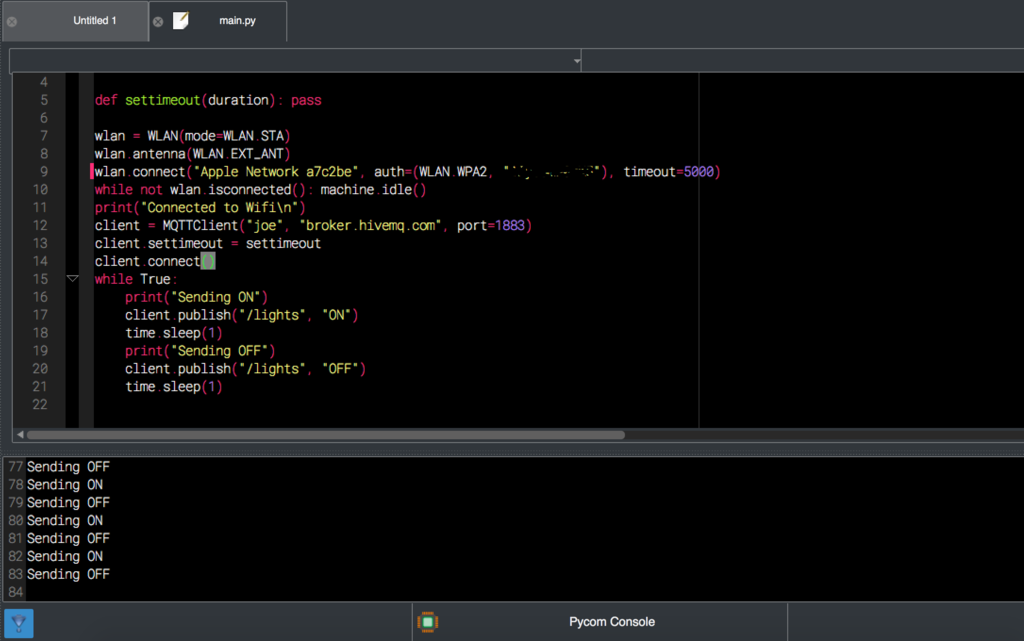
Go back to http://www.hivemq.com/demos/websocket-client/ and subscribe to your topic, and you should see the messages start coming in on the broker.
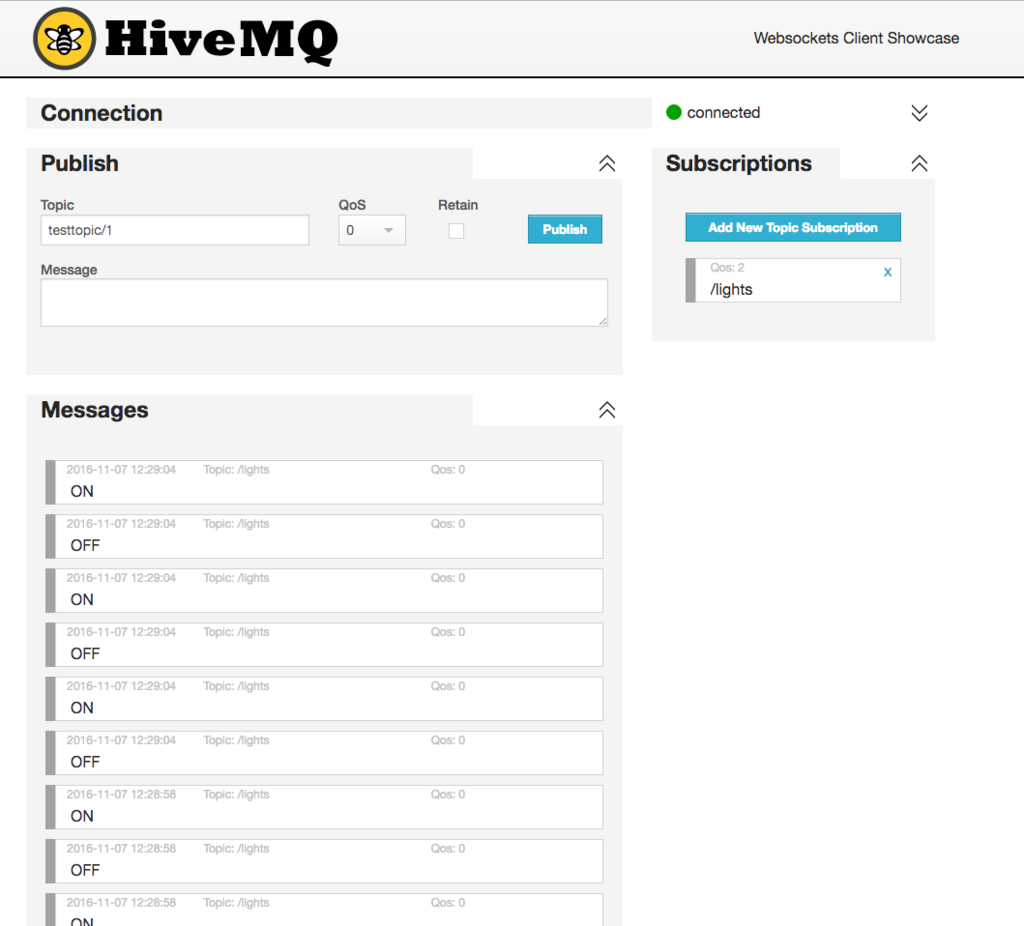
Bit of a dummies guide but hope this helps some people!
-
-
The code works fine on my lopy (release 0.9.1.b1) to connect broker.hivemq.com, but it doesn't work to connect test.mosquitto.org. I have a mosquitto broker on local machine, but...... not working. Please, help about this issue. Thanks.
-
My try was successful with this on debian:
https://pallavichaurasia94.wordpress.com/2014/10/14/mosquitto-in-debian/
for install MQTT brockers.On the lopy i use this initialisation:
from umqtt import MQTTClient
def settimeout(duration): pass

client = MQTTClient("joe", "192.168.4.2", port=1883)
client.settimeout = settimeout
client.connect()
that give me the possibility to publish fine on my brockers with the command:
client.publish("hello/world", "My publication")I have make some try to basic read brocker's data from lopy, We need to define a function who have been called if message are find:
import pycom
def t3_publication(topic, msg):
    print (topic, ':', msg)
    pycom.rgbled(0xff00)
and assign it:
client.set_callback(t3_publication)now we can subscribe to the desired channel:
client.subscribe("hello/world", qos=1)I put data to the MQTT brockers from another terminal (localhost from brocker's server)
mosquitto_pub -d -t hello/world -m "Hello, MQTT. This is my first message.", and i launch the check of the brocker's message from lopy by:client.check_msg()That's print message in channel, and set led to green (who's been reset by the heartbeat).
I hope that will help you.
-
Hmmm, do you have your Mosquito broker details to hand to i can test?
I usually have a node-red instance running that connects to my broker so i can quickly test if the broker is up or down. A few of these public test brokers are not that stable so 9/10 it's the broker being down that causes my issues.
-
Sorry i don't speak very well english, so i hav'nt really understand what you says exactly. But i mean you want data about the different version
I have use the pycom_update_0.9.3.b2 on the lopy. And for the mosquitto the version is 1.3.4-2. I'm begin in the IoT world, and maybe i have too few knowledge in it for understand you. If i have not answer that you wait, feel good about explain another way. -
@thibault My apologies, I was replying to vruizil below.
-
Well, thanks a lot for the comments.
After uppgrade recent firmware, the code works fine connecting mosquitto broker.
But, I can't connect two differents sockets with two differentes brokers at same time.
It needs run .disconnect() function to be abel to use the other one broker.
I don't know the reason....., well, I'am not a python expert.# Initialize MQTT Client def settimeout(duration): pass def t3_publication(topic, msg): print (topic, ';', msg) pycom.rgbled(0xff00) UNIQUE_ID = machine.unique_id() MQTT_BROKER = "192.168.2.220" MQTT_PORT = 1883 mqtt_client = MQTTClient(UNIQUE_ID, MQTT_BROKER, port=MQTT_PORT) mqtt_client.settimeout = settimeout mqtt_client.set_callback(t3_publication) mqtt_client.connect() MQTT_BROKER_2 = "test.mosquitto.org" #MQTT_PORT = 1883 mqtt_client2 = MQTTClient(UNIQUE_ID, MQTT_BROKER_2, port=MQTT_PORT) mqtt_client2.settimeout = settimeout mqtt_client2.set_callback(t3_publication) mqtt_client2.connect() -
Dummy question,
I have the code on my LoPy working :
from simple import MQTTClient
import  time
def settimeout(duration): pass
client = MQTTClient("MainSheet", "broker.hivemq.com", port=8000)
client.settimeout = settimeout
client.connect()
while True:
    print("Sending ON")
    client.publish("/lights", "ON")
    time.sleep(1)
    print("Sending OFF")
    client.publish("/lights", "OFF")
    time.sleep(1)
output is this
connected with goofy, channel 1
Sending ON
Sending OFF
Sending ON
Sending OFF
Sending ON
Sending OFF
Sending ON
Sending OFF
Sending ON
Sending OFF
Connecting to http://www.hivemq.com/demos/websocket-client/? with Chrome
Host = broker.hivemq.com
ClientID = MainSheet
Port = 8000. ( I tried setting the port to 1883 but then I can't connect to hivemq. I also tried to set the code above to connect to port 8000, however, got an out of range error)
subscribed to /lightshowever, the messages never get through to HiveMQ
Steve
-
@MainSheet said in Simple MQTT Tutorial:
Try client.disconnect(), then client.connect(). Try on firefox, it works fine in my tests, and try another topic (without slash), ie.: "mylopytopic"
-
@vruizvil
For Windows, I use MQTTFX Client. Here the link
http://www.jensd.de/apps/mqttfx/ -
@MainSheet I'am not able to connect.
What do I wrong?In my main.py I setup the wifi connection successfully.
I checked that by doing an http get call and I was able to get HTML data from a website. So internet connection is working.I went to: http://www.hivemq.com/demos/websocket-client/
And created a connection with the following details:
Host: broker.hivemq.com
Port: 8000
ClientID: MyLoPyI created a subscription and tested some messages. All works.
Then I typed the following commands on my LoPy:
MicroPython v1.8.6-40-gd10463e on 2016-11-25; LoPy with ESP32
Type "help()" for more information.from umqtt import MQTTClient
def settimeout(duration): pass
...
client = MQTTClient("MyLoPy", "broker.hivemq.com", port=8000)
client.settimeout = settimeout
client.connect()
0xc b'10:12:00:04:4d:51:54:54:04:02:00:00'
Traceback (most recent call last):
File "<stdin>", line 1, in <module>
File "umqtt.py", line 86, in connect
IndexError: bytes index out of range -
@gertjanvanhethof Hi!, try with machine.reset(), then try your code one more time, you need only one client socket, when you try few times the code, I think the socket doesn't work fine. That is the way to solve the same problem in my tests, but I don't know the reason.
-
My code is as following:
import time
import machine
from umqtt import MQTTClientdef settimeout(duration): pass
def connect():
if machine.reset_cause() != machine.SOFT_RESET:
client = MQTTClient("MyLoPy", "broker.mqttdashboard.com", port=8000)
client.settimeout = settimeout
client.connect()
print('Connected MQTT Broker.')
return clientdef send(client):
while True:
print("Sending ON")
client.publish("/lopy", "ON")
time.sleep(1)
print("Sending OFF")
client.publish("/lopy", "OFF")
time.sleep(1)I do a connect() and the result is as following:
client.connect()
0xc b'10:12:00:04:4d:51:54:54:04:02:00:00'
Traceback (most recent call last):
File "<stdin>", line 1, in <module>
File "umqtt.py", line 86, in connect
IndexError: bytes index out of rangeStill going wrong. What could be the solution?
-
@MrPy Are you sure those are you messages? I checked and somebody else was publishing these messages.
-
I found the error. The port is wrong.
It should be: 1883.
Then connect is working. -
@vruizvil Hi
I started a mosquitto on my laptop (vm debian) and it is working with the code as it is i updated it a little to make it configurable via config param file (wifi and mqtt)
what error you are getting ? -
@gas It's working now. The used port was wrong. Thxs for your help.
-
MQTTClient is missing in the latest firmware, using the image release on 02/Dec/2016.
Could someone confirm this.
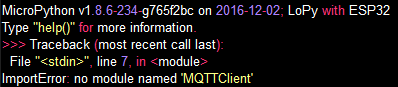
-
@RSK
umqttis not part of Pycom's firmware or standard micropython. It is an external Python library, so to be able to use it you need to upload it to your device.The easiest way to do that is using Pymakr. Another way is using plain FTP (https://docs.pycom.io/pycom_esp32/pycom_esp32/general.html#local-file-system-and-ftp-access).
Please read step 2 again and try to follow the instructions. If you have any problems let us know.
-
@sakis Thanks!
I have downloaded umqtt.simple.py from https://github.com/micropython/micropython-lib and placed it in /flash/simple.py of the LoPy using FTP.
And trying to connect from my LoPy application:
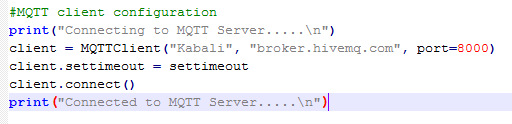
With Hive settings:
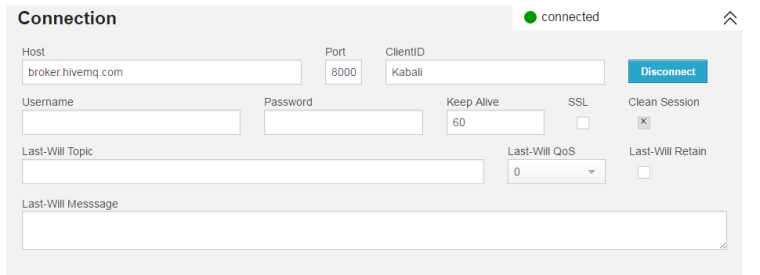
But connect fails with error "bytes index out of range":
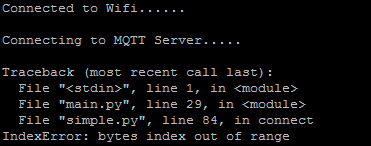
Please help to resolve.
Thanks & Regards,
Satish Kumar. R.
Hello! It looks like you're interested in this conversation, but you don't have an account yet.
Getting fed up of having to scroll through the same posts each visit? When you register for an account, you'll always come back to exactly where you were before, and choose to be notified of new replies (either via email, or push notification). You'll also be able to save bookmarks and upvote posts to show your appreciation to other community members.
With your input, this post could be even better 💗
Register Login