Instructions for upgrading Pytrack / LoPy
-
@hjl Tried different rates as well..!
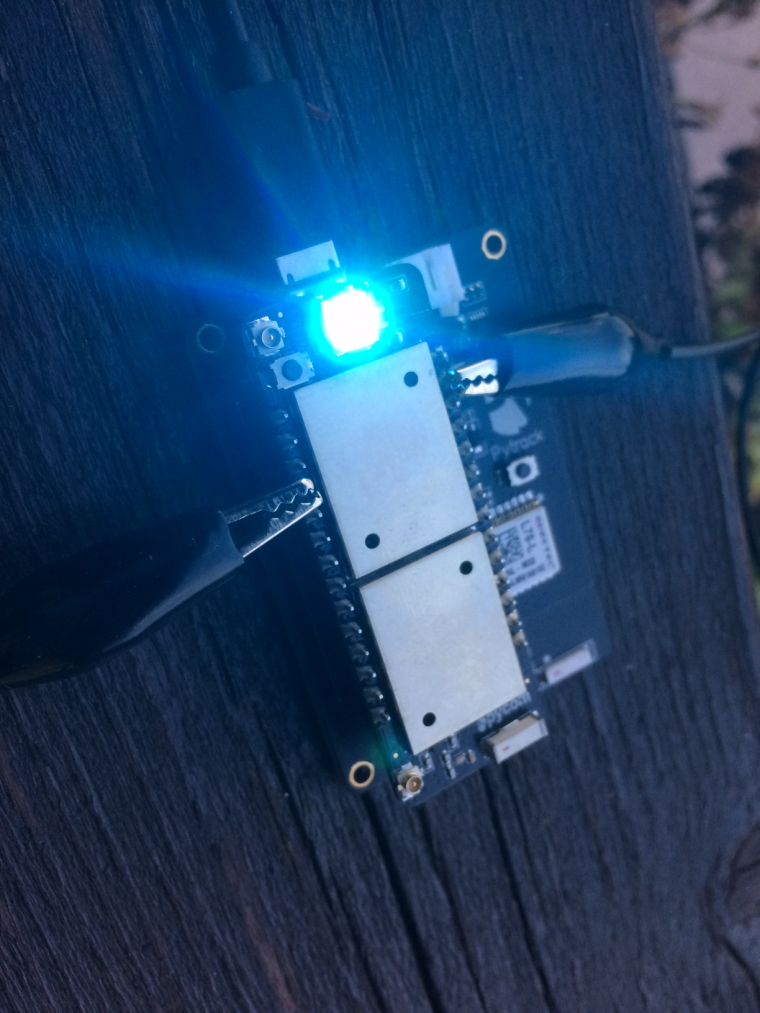
-
@bucknall The preconfigured serial port in the updater tools doesn't match my serial port.
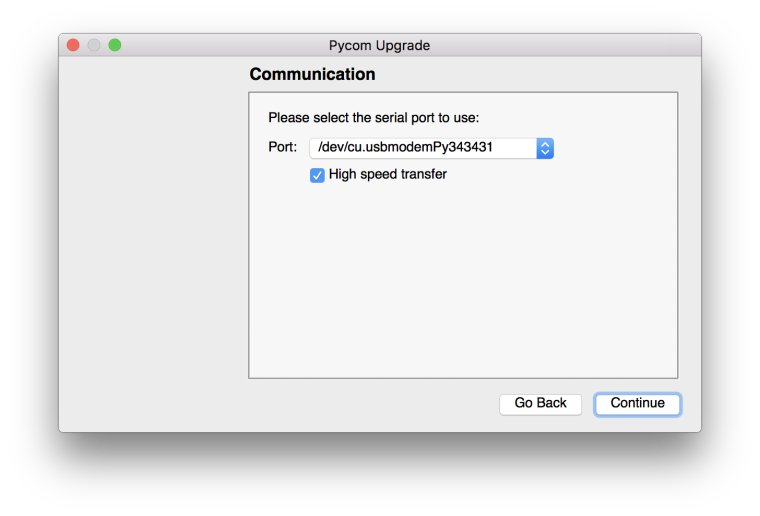
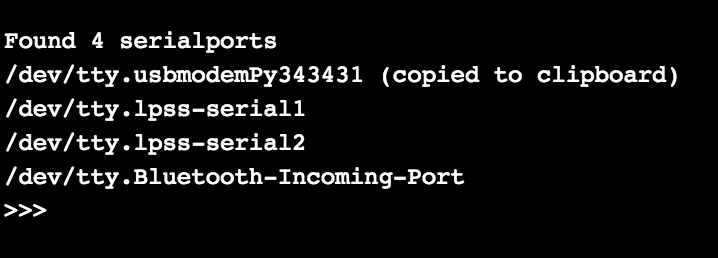
cu.
tty.difference...? I connect with an adapter through a USB-C port.
-
@hjl @bucknall @jmarcelino any ideas?
-
@hjl
You usually get a cu. and tty. port on macOS (actually it's a BSD thing, so the same for FreeBSD and other *nixes) they should be effectively the same thing other than historical differences.To be honest I never managed to upgrade the firmware using the Pytrack on high or low speed - neither worked - but I haven't tried in latest Pytrack firmware.
-
Hi @hjl,
Apologies for the slow reply, I've been out of office for the last few days.
I've just tried the update procedure with a Pysense and LoPy, without any problems. I'll try it again with a Pytrack but the firmware is practically identical for the two shields.
Have you updates the firmware on your Pytrack Shield? If you're using an older version of the firmware then this might be preventing you from updating.
Thanks,
Alex
-
@bucknall Hi, I've use the dfu-util to upgrade it with the 0.0.4 version and that seemed to be going OK..
-
@bucknall But still experiencing upgrade problems for the lopy..
-
Hi @hjl,
What seems to be the issue? Is it still not going in firmware upgrade mode?
-
@bucknall I am failing at this point.. Staying in bootloader means I am in firmware upgrade mode, right?
-
@hjl If you use the Pymakr Plugin or a Serial Terminal to view the output from your device when you boot up (with pins GND and G23 connected), you will see a message like this appear:

This means your device is correctly going into firmware update mode.
Now to use the Firmware Update Tool, you must unplug the USB cable from your computer and plug it into another port (sometimes Windows/Mac/Linux, do not release the serial address). Ensure that the jumper wire is in exactly the same position as when you saw the message appear above.
Now run the Firmware Upgrade Tool and 'un-select' the box for High speed Transfer.
This should then run successfully. Let me know if that helps!
Thanks,
Alex
-
For those using a Pysense for upgrade, there's actually a much simpler way to connect GND and G23: just connect pins 1 and 5 (GND and EXT_IO0) on the external I/O header.
I suppose it's the same on the Pytrack?
-
@jcaron I can confirm this for PyTrack!
-
@cinezaster @jcaron thanks guys, I'll try that!
Hello! It looks like you're interested in this conversation, but you don't have an account yet.
Getting fed up of having to scroll through the same posts each visit? When you register for an account, you'll always come back to exactly where you were before, and choose to be notified of new replies (either via email, or push notification). You'll also be able to save bookmarks and upvote posts to show your appreciation to other community members.
With your input, this post could be even better 💗
Register Login