New firmware release v1.16.0.b1 (LoRaWAN 1.0.2 multi-region support)
-
@xykon Awesome! Thanks. I have emailed the request to support, but you know what, as soon as I flash my LoPy using the FW you sent, it started to work.
Thanks heaps and hopefully on the next FW release, it will be a lot of help to also include the link to the FW file.
Regards,
Adam -
This post is deleted! -
@daniel i have WIFI and socket issue. If i create a socket but i haven't never connected the wifi object, the "socket.connect()" raise an exception.
instead if i do this step:- create and connect with the wifi object
- shutdown the router
- create socket and socket.connect()
the call doesn't raise nothing despite the socket.settimeout(3). Furthermore the wlan.ifconfig() return True as i was still connected. I attach a simple code to test the issue.
import socket import machine import time from network import WLAN ssid = "MY_SSID" pwd = "MY_PWD" sec = WLAN.WPA2 def http_get(url): _, _, host, path = url.split('/', 3) addr = socket.getaddrinfo(host, 80)[0][-1] s = socket.socket() s.setblocking(True) s.settimeout(3) s.connect(addr) s.send(bytes('GET /%s HTTP/1.0\r\nHost: %s\r\n\r\n' % (path, host), 'utf8')) while True: data = s.recv(100) if data: print(str(data, 'utf8'), end='') else: break s.close() wlan = WLAN(mode = WLAN.STA, antenna = WLAN.INT_ANT) wlan.connect(ssid=ssid, auth=(sec,pwd)) print("Waiting for connection") while not wlan.isconnected(): machine.idle() i = 0 while 1: if not wlan.isconnected(): print("Not connected to AP") else: print("Connected to AP") i+=1 try: http_get('http://micropython.org/ks/test.html') except: print("GET failed") time.sleep(3) print("GET n: " + str(i)) -
@cruzer said in New firmware release v1.16.0.b1 (LoRaWAN 1.0.2 multi-region support):
@xykon Awesome! Thanks. I have emailed the request to support
I was travelling yesterday... I checked the support email inbox today but can't seem to find your email. If you can send me a personal message instead I will update your device as soon as possible so you can use the GUI firmware updater when the next update is released.
-
@xykon I'm getting the following error with a Sipy which can happily be upgraded using the latest GUI tool but fails using the cli tool. When I type the following at a command prompt:
pycom-fwtool-cli.exe -p COM3 sigfox
I get:
Exception: Cannot configure port, something went wrong. Original message: Window
sError(87, 'The parameter is incorrect.'), on line 351I have already confirmed with the "list" command that COM3 is correct. The GUI update works so I have G23 grounded OK. I have rebooted so nothing else is using the serial port. Any ideas?
-
@xykon said in New firmware release v1.16.0.b1 (LoRaWAN 1.0.2 multi-region support):
@combaindeft said in New firmware release v1.16.0.b1 (LoRaWAN 1.0.2 multi-region support):
@daniel Hi,
And where is the link to the firmware?
https://software.pycom.io/downloads/LoPy_868-1.16.0.b1.tar.gz
doesn't seem to work :-(
Since there are no longer frequency specific versions, the download link for the LoPy1 would be https://software.pycom.io/downloads/LoPy-1.16.0.b1.tar.gz
If you flash this firmware manually rather than using the GUI firmware updater, it will default to using EU 868MHz frequency unless the LoRa stack is initialised in code with the correct region.
To set the default region manually, the cli version of the firmware updater has a special command for this.
On MacOS, the cli version is installed in
"/Applications/Pycom Firmware Update.app/Contents/Resources/"aspycom-fwtool-cliOn Windows, this is installed either in
"C:\Program Files\Pycom\Pycom Firmware Update"(32bit) or"C:\Program Files (x86)\Pycom\Pycom Firmware Update"(64bit) aspycom-fwtool-cli.exeFor Unix/Linux, this is launched via
python bin/updater.pyfrom thepyupgradefolder.Example for MacOS:
Check available serial ports:
"/Applications/Pycom Firmware Update.app/Contents/Resources/pycom-fwtool-cli" listCheck current LPWAN settings:
"/Applications/Pycom Firmware Update.app/Contents/Resources/pycom-fwtool-cli" --port /dev/tty.usbmodemPy343431 lpwanSet default LoRa region to US915:
"/Applications/Pycom Firmware Update.app/Contents/Resources/pycom-fwtool-cli" --verbose --port /dev/tty.usbmodemPy343431 lpwan --region "US915"Note: If you omit the -v / --verbose option, you will not see any output for the command. To check if it was successful, you can check
echo $?which should return 0 on success or any other number on failure.You can also use the command
"/Applications/Pycom Firmware Update.app/Contents/Resources/pycom-fwtool-cli" --port /dev/tty.usbmodemPy343431 lpwanagain to check that your modification was successful.Example on Windows (64bit): see above explanations for MacOS which are identical for all OS
"C:\Program Files (x86)\Pycom\Pycom Firmware Update\pycom-fwtool-cli.exe" list"C:\Program Files (x86)\Pycom\Pycom Firmware Update\pycom-fwtool-cli.exe" -p COM4 lpwan"C:\Program Files (x86)\Pycom\Pycom Firmware Update\pycom-fwtool-cli.exe" --verbose -p COM4 lpwan --region "US915"Example on Windows (32bit): see above explanations for MacOS which are identical for all OS
"C:\Program Files\Pycom\Pycom Firmware Update\pycom-fwtool-cli.exe" list"C:\Program Files\Pycom\Pycom Firmware Update\pycom-fwtool-cli.exe" -p COM4 lpwan"C:\Program Files\Pycom\Pycom Firmware Update\pycom-fwtool-cli.exe" --verbose -p COM4 lpwan --region "US915"Example on Linux: see above explanations for MacOS which are identical for all OS
python bin/updater.py listpython bin/updater.py --port /dev/ttyACM0 lpwanpython bin/updater.py --verbose --port /dev/ttyACM0 lpwan --region "US915"I run into lots of issues trying to follow these instructions on a Win64 machine. First issue is the com port needs to use lower case. A bigger issue is that the update program is looking for a file named lopy_915.bin in the archive. This doesn't exist in the archive. Had to rename the file lopy.bin to lopy_915.bin in order for it to work and actually update my device. Also, please put a print statement or something to know that it is actually working. A few times I thought it was locked up so I ctrl-c out of it.
-
@aevraewrvaervea Thanks to the tip from @ssmith, using com3 instead of COM3 worked, despite the tool reporting the com port as being COM3 on Windows when the list command is used, and the erroneous example code, i.e.,
C:\Program Files (x86)\Pycom\Pycom Firmware Update>pycom-fwtool-cli.exe -v -p co
m3 -s 921600 flash -t SiPy.tar.gzworks where SiPy.tar.gz is the firmware file in the same folder.
-
@daniel I just wonder - if LoRaWAN in this release was updated to 1.0.2 why
os.uname()showslorawan='1.0.0'? -
@Xykon: how can I use the updater tool to flash custom firmware using the
pycom-fwtool-cli? I think there used to be an-foption which was used to specify the file. However, when using the latest release of the firmware updater tool 1.10.1.b2 I was not able to flash custom fw. Would you mind providing an example on how to achieve this? -
@this-wiederkehr You can use the
-toption, providing the.tar.gzarchive as an argument.With a Pysense or Pytrack (running a recent firmware) and the
--pypicoption this makes upgrades much easier than they used to be. -
@jcaron awesome, thanks.
-
@this-wiederkehr
I had troubles to flash custom firmware using latest version of CLI tool and found out that for me it only works with -t parameter after flash:pycom-fwtool-cli -v -p comXY -s 921600 flash -t custom_firmware.tar.gz -
@jcaron Where do I download the command line tool pycom-fwtool-cli ?
I am using the Windows 10 environment with Atom and pymakr addon and cannot find it under Program files (x86) or elsewhere. My objective is to setup LoRa as US915
I have flashed the the v1.16.0.b1 successfully using GUI and notice that with os.uname() it still shows lorawan='1.0.0'
However, I can only get a LoPy OTAA connection at 868.1 despite using the optional region=LoRa.US915 in main.py or config.py. -
In Linux the firmware upgrade for LoPy using the command line procedure "./update" (pycom_firmware_update_1.10.1.b2.tar.gz) fails.
Error shown
"... usage: updater.py [-h] [-v] [-p PORT] [-s SPEED] [-c] [-x]
{list,chip_id,wmac,smac,sigfox,exit,flash,write,cb,nvs,ota,lpwan,erase_fs,erase_all}
...
updater.py: error: argument command: invalid choice: '4190208' (choose from 'list', 'chip_id', 'wmac', 'smac', 'sigfox', 'exit', 'flash', 'write', 'cb', 'nvs', 'ota', 'lpwan', 'erase_fs', 'erase_all')
..."I tried downloading the firmware file for the LoPy (file LoPy-1.16.0.b1.tar.gz)
and use, as in downgrade firmware thread, the command
python bin/updater.py -t FIRMWARE_FILE_NAME.tar.gz -p SERIAL_PORT -s 921600 flashIt doesn't work since in the new bin/updater.py the command arguments were split in groups, while before where all put together.
So "flash" has to before "-t FIRMWARE_FILE_NAME.tar.gz".So the command has to be:
python bin/updater.py -p SERIAL_PORT -s 921600 flash -t FIRMWARE_FILE_NAME.tar.gznote: -s 921600 can be omitted since it is the default value
LoRa region Europe is default value. -
@tombee It should be under
C:\Program Files (x86)\Pycom\Pycom Firmware Update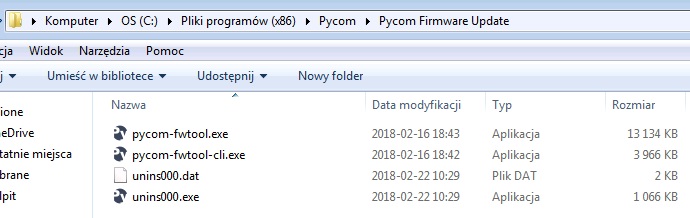
-
@rskoniec Thanks
It shows up on my Windows 7 computer in the Program Files(x86)
but NOT in my Windows 10 computer! Any ideas? -
@rskoniec I used C:\Program Files\Pycom\Pycom Firmware Update\pycom-fwtool-cli.exe --verbose -p com13 lpwan --region "US915"
but after a Connecting ........................................____ shows for about 15 seconds it ends with
Exception: Failed to connect to ESP32: Timed out waiting for packet header, on line 351
Suggestions? -
@tombee Press the reset button, Make sure all other programs that use the COM port are not connect, verify the the device is actually going into programming mode by opening a COM port and seeing the waiting for download message.
-
@ssmith I pushed the reset button prior to each attempt and the LoPy flashed green.
I was able to install using the GUI version but seem stuck at getting the US915 region setup when using the command line version. I am using a Windows 7 64bit computer where I was able to find the Pycom Firmware Update directory. It doesn;t show up in my Windows 10 pc directories. -
@tombee From the output it looks like you are using an Expansion Board 2.0
Did you install the jumper wire the same way you do when using the GUI firmware update tool?
Hello! It looks like you're interested in this conversation, but you don't have an account yet.
Getting fed up of having to scroll through the same posts each visit? When you register for an account, you'll always come back to exactly where you were before, and choose to be notified of new replies (either via email, or push notification). You'll also be able to save bookmarks and upvote posts to show your appreciation to other community members.
With your input, this post could be even better 💗
Register Login