Exp Board 2.0 serial communication problem
-
@szyba91 For connecting via FTP, you have also to connect "the WLAN wire", meaning, your PC has either to attach to the access point created by the FiPy, or the FiPy has to join the WIfI network you are using with the PC.
By default, the FiPy creates an Access point with the name <forgot the name> and the password "micropythoN". When you attach to that, the FiPy assignes an IP address to your PC and is itself available with the IP address 192.168.4.1. You can then ftp to that address.
For the FiPy to acess your WiFi network it requires a short script in your FiPy's boot.py or main.py. This is from the examples & should work.from network import WLAN wlan = WLAN(mode=WLAN.STA) nets = wlan.scan() for net in nets: if net.ssid == 'mywifi': print('Network found!') wlan.connect(net.ssid, auth=(net.sec, 'mywifikey'), timeout=5000) while not wlan.isconnected(): machine.idle() # save power while waiting print('WLAN connection succeeded!') breakThe trick is to get that into the device. You can enter them manually into the REPL prompt. The required statements are:
from network import WLAN wlan = WLAN(mode=WLAN.STA) wlan.connect('myssid', auth=(WLAN.WPA2, 'mywifikey'), timeout=5000) print("WLAN connected: ", wlan.isconnected()) -
@robert-hh Sorry, the AP password is "www.wipy.io"
-
@robert-hh I'm trying to use enter your second idea with manuall cammands. Res Result : WLAN connected: False
I've change the myssid to my real network ssid and same with key. I've try with quotes and without quotes and its the same.
-
@szyba91 You need the quotes. Did you get any errors with the commands? What happens if you redo the wlan.isconnected() later?
I assumed the security sertting of your network is WPA2. It may be different. -
@robert-hh Its WPA2 Personal (I've read this from WIndows netowrk properties) Should I change it ?
As for redo: You mean instead of using wlan.connect('vnet-47DA1E', auth=(WLAN.WPA2, '89050914123'), timeout=5000)
use this : wlan.isconnected() ?
-
@szyba91 Then WPA2 is OK. No. Do not change the commands. wlan.isconnected() just checks, whether a connection exists. Making the connection can sometimes take some time, longer than the 5 seconds. You may also just issue the command
wlan.connect('vnet-47DA1E', auth=(WLAN.WPA2, '89050914123'))
and then after some time check with wlan.isconnected(), whether the connection was made. -
@robert-hh Result of wlan.isconnected() is "True"
-
@szyba91 Then you should be able to connect. The ip address of the FiPy is shown with:
wlan.ifconfig()
(maybe it's wlan.ifconfig(id=0)) -
@robert-hh Ok - using the wlan.ifconfig() if got this:
('192.168.0.14', '255.255.255.0', '192.168.0.1', '37.8.214.2')So 192.168.0.14 is the IP that i have to write to FilleZilla configrator?
I've already do so and there is a progress beacuse i have following serwer answerStatus: Connecting to 192.168.0.14:21...
Status: Connection established, waiting for welcome message...
Status: Initializing TLS...
Error: GnuTLS error -15: An unexpected TLS packet was received.
Error: Could not connect to server
Status: Waiting to retry...
Status: Connecting to 192.168.0.14:21...
Status: Connection established, waiting for welcome message...
Response: 220 Micropython FTP Server
Command: AUTH TLS
Response: 332
Status: Initializing TLS...
Error: GnuTLS error -15: An unexpected TLS packet was received.
Error: Could not connect to server -
@szyba91 Please follow the instructions from the documentation: https://docs.pycom.io/chapter/gettingstarted/programming/FTP.html
-
@robert-hh Looks like i had to reset program Filezilla. Now I'm finlly connted via FTP.
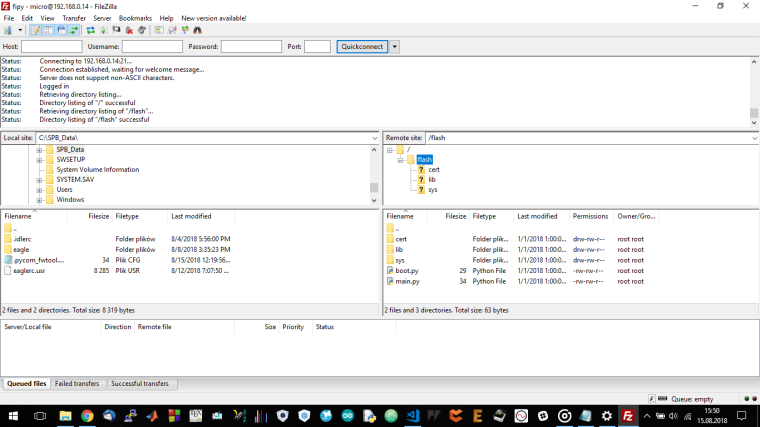
Could you explain me how to upload the code via FTP ?
-
@szyba91 You can drag files between the two panes. Just maneuver on the left pane to your project directory and move files to the right side. Source files can be placed in /flash or /flash/lib, to be found by the import statement. Within the filezilla settings, section "modify files" (or so) you can define your favorite editor. If then in a file pane, right click, you chose view/edit, you can directly edit the file.
Edit: it is important that in the setting you have set passive mode/1 connection only. It is also convenient to add your device to the server list under file->server manager
Edit2: You can create bookmarks in Filezilla, which include directory settings and device connections.
Edit 3: If you are by chance a Firefox user, you might like FireFTP as ftp client, which in my opinion is easier to use than FileZilla. There is no similar too for Google Chrome. -
@robert-hh said in Exp Board 2.0 serial communication problem:
@szyba91 You can drag files between the two panes. Just maneuver on the left pane to your project directory and move files to the right side. Source files can be placed in /flash or /flash/lib, to be found by the import statement. Within the filezilla settings, section "modify files" (or so) you can define your favorite editor. If then in a file pane, right click, you chose view/edit, you can directly edit the file.
Edit: it is important that in the setting you have set passive mode/1 connection only. It is also convenient to add your device to the server list under file->server manager
Edit2: You can create bookmarks in Filezilla, which include directory settings and device connections.
Edit 3: If you are by chance a Firefox user, you might like FireFTP as ftp client, which in my opinion is easier to use than FileZilla. There is no similar too for Google Chrome.OK.I've dragged files form computer(defult left window) to flah -> lib (default right side).
First I've do so with simple RGB led and it works and i was also able to see REPL prompt .I thought myself "yes finally I go further with IoT project". So - again I uploded simple LoRa raw ping code between A and B device and.... doesn't work :(
Maybe i will create another subject? This one is actaully solvde becasue with Your help i was able to fix communication problem - now it seams that this is different kid of problem. -
@szyba91 What do you mean with: does not work? The copying or the script?
For copying Filezilla also support a upload option with the right cick on the file. SImple Double-Click also copies. Did you set the number of transfers to 1 in the settings? The ftp server in the xxPy devices is pretty limited.
I had never problems using ftp for file transfer, but I'm using FireFTP, which is a Firefox plugin. That is convenient because I have firefox open anyhow almost all the time.

Hello! It looks like you're interested in this conversation, but you don't have an account yet.
Getting fed up of having to scroll through the same posts each visit? When you register for an account, you'll always come back to exactly where you were before, and choose to be notified of new replies (either via email, or push notification). You'll also be able to save bookmarks and upvote posts to show your appreciation to other community members.
With your input, this post could be even better 💗
Register Login