Gpy updating firmware with USB UART
-
I've been trying to update the Gpy firmware thru the USB UART but I'm unable to connect it the installer. I get Failed to connect to ESP32: Timed out waiting for packet header. I was able to connect with it thru wifi but Idk how I would update it from there. Please help.
-
@mtulabot How do you connect the GPY. Are you using a PyCom expansion board or a standard USB/UART bridge. In any case, if you connect P2 to GND and push reset, then the firmware update mode is active. That should be done by the PyCom expansion board, but you can do that also manually.
-
I have connected the Gpy with a standard USB/UART bridge. Also connected p2 and GND, pushed reset and tried to update. I also installed the driver for the USB/UART needed for it. Here is how it looks like. !
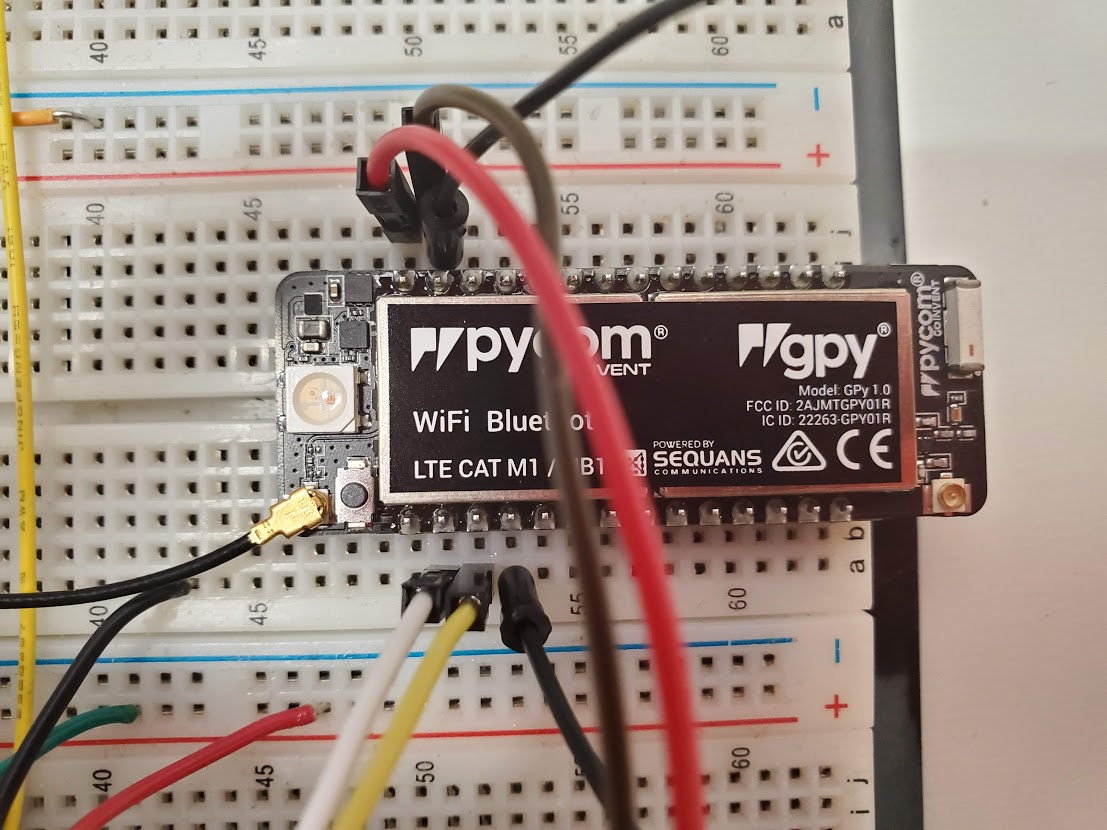
-
@mtulabot I still get the same error
-
@mtulabot Does REPL work? If yes, you have connected the GPY with a terminal emulator (Putty, etc), connect P2 to GND and push reset, you should see in the terminal window something like:
rst:0x1 (POWERON_RESET),boot:0x2 (DOWNLOAD_BOOT(UART0/UART1/SDIO_REI_FEO_V2))
waiting for download
If not, the device is not in download mode. If yes, you could try to reduce the UART speed in the downloader. Not all USB/UART devices support high speed.
-
@robert-hh REPL works only when I connected the laptop and Gpy thru wifi.
Okay I will try to reduce the speed of the downloader. How would I do that? Is it from the pycom installer and uncheck highspeed transfer? -
@mtulabot Are you sure you have a good USB cable? Some cables only support charging and have no data wires. And you can try to swap the RX/TX wires. The labeling is not always consistent.
-
@robert-hh That actually worked! I switched the RX/TX cable and I was able to connect via USB UART. Thank you so much! Question, would I need the antennae to be able to connect/scan for wifi? I tried the example on the DOCS connecting to a router on boot, but with the command WLAN.isconnected() it returns FALSE.
-
@mtulabot For WiFi you do not need an external antenna. There is an on-board antenna. The connection to a route takes a few seconds. So you have to wait a while, e.g. in a look, to connect. The example here: https://docs.pycom.io/tutorials/all/wlan/ should work. These statements are the core of it, if you know the SSID and authentication mode of your router:
from network import WLAN wlan = WLAN(mode=WLAN.STA) wlan.active(True) wlan.connect('mywifissid', auth=(WLAN.WPA2, 'mywifikey'), timeout=5000) while not wlan.isconnected(): machine.idle() # save power while waiting print('WLAN connection succeeded!') -
@mtulabot Did you manage to upload code with the pymakr extension using this UART-USB interface?
-
This post is deleted!

Hello! It looks like you're interested in this conversation, but you don't have an account yet.
Getting fed up of having to scroll through the same posts each visit? When you register for an account, you'll always come back to exactly where you were before, and choose to be notified of new replies (either via email, or push notification). You'll also be able to save bookmarks and upvote posts to show your appreciation to other community members.
With your input, this post could be even better 💗
Register Login