Not safe booting
-
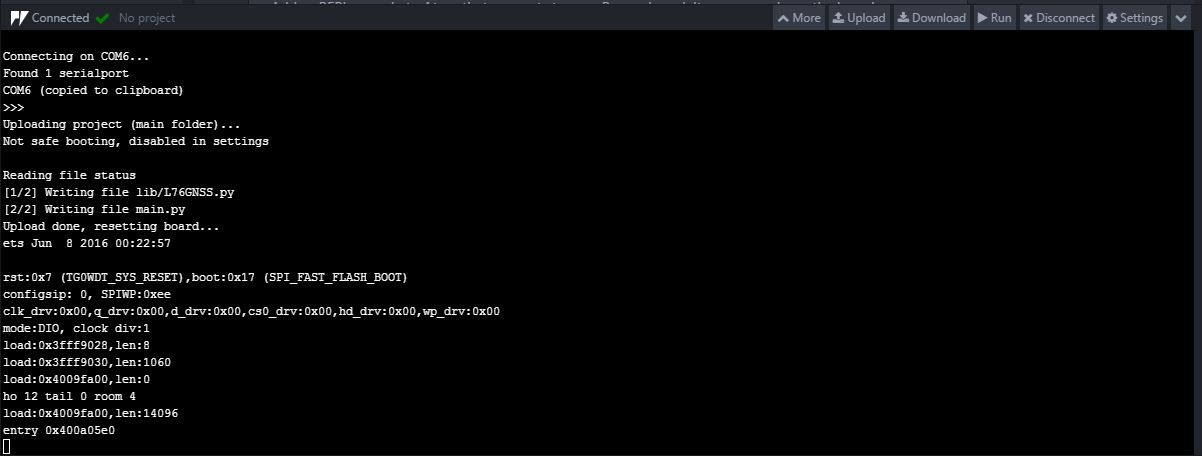
Hi there, i just install the Pymakr 1.2.10 in the Atom 1.25.0. When i connect my lopy to the computer and it show "Not safe booting, disabled in settings". May i know what is it mean? What if i just let it be and what is the effect of having it or not?

-
Go to the global settings, find the 'safe boot before upload' setting and you can read the description of how the feature works:
"Safe boots the board before uploading to prevent running out of memory while uploading. Especially useful on older boards with less memory, but adds about 2 seconds to the upload procedure" -
@ralph Thanks, i get it.
-
Ralph, hello. I'm brand new to Pycom and I am having the same issue as MJ with uploading a project to a FiPy board.
I am using Atom and I have a small program in main.py that I can successfully control (run and suspend) via the console and run button.
I have created a project directory structure as follows: Programs->cert,lib,sys, boot.py, main.py and pymakr.conf as per documentation.
In the pymaker.conf file I have included the line "sync_folder": "Programs"
I now want to save the project files on the FiPy board so that the program executes on powering up. I assume you are using the term Sync to describe this process and that it is achieved by using the Upload button in the Atom Pymakr console plugin; s this correct?
Looking at the naming convention recommended, I have copied my working script into boot.py, believing this to be the file that the interpreter will run on boot; again is this correct?
I've also tried (but failed) to "Upload" the project files to the FiPy using the Upload button.
The Pymakr console informs me that it is "Uploading project (Programs)..."
But then returns "Not safe booting, disabled in settings"
Then returns
"Reading file status
No files to upload"more output then returns to the ">>>" prompt.
Can you explain what is going on here please? It is clear that no files have been uploaded, but why?
Is it necessary to have safe booting enabled to allow the uploading of files? If the answer is yes then this should be stated in the documentation. BTW, you state in your reply to MJ that the safe booting setting is to be found General settings. Can you be more explicit please, as I cannot find any reference to "Safe booting settings", thanks.
Your help would be most gratefully received.
Many thanks in advance.
-
Hi @drgdhorler,
First, with 'Sync' we indeed mean 'Upload'. The feature got renamed at some point, but the old naming 'sync' still shows up here and there.Safe boot is not needed for upload, it's just an option that is useful on old boards that don't have much memory and get allocation errors during upload.
I think what's going on is the 'sync_folder' not being set correctly. If you set the line "sync_folder": "Programs" means that you should have a folder 'Programs' inside your project that contains the python files that you want to upload. If that folder is empty, it won't upload anything. If you have your python files in the main project folder that you have opened in Atom, just remove the sync_folder setting, or set it to the default which is an empty string.
The other option is that you already uploaded the files correctly once. if you upload the second time, but the files are unchanged, it will report 'No files to upload' since there have been no changes to them.Let me know if that gets you up to speed.
-
Hi @ralph
I managed to get the file uploaded and working, thanks. I need to explore this further before I can claim to understand what is going on.
Again, thanks for the speedy reply.
-
No issue @drgdhorler, have fun coding :)
Hello! It looks like you're interested in this conversation, but you don't have an account yet.
Getting fed up of having to scroll through the same posts each visit? When you register for an account, you'll always come back to exactly where you were before, and choose to be notified of new replies (either via email, or push notification). You'll also be able to save bookmarks and upvote posts to show your appreciation to other community members.
With your input, this post could be even better 💗
Register Login