Debugging code in FiPy | Except print statements
-
Hello Pycom team,
What are the different possible ways of debugging micropython code in Fipy except print statements? Is there a document which can be referred?
Yours Sincerely,
Vijay -
Hi,
Other than print statements, you could use the GPIO pins to indicate events in your code, and measure them using a logic analyser. Especially when speed is of essence, this method will work better.
Now, you could use a JTAG board and connect to the appropriate pins, but I have no experience there.
Gijs -
For simple states, use the RGB LED, with colours and even blink frequency meaning some states.
For more information, save debug messagens to internal flash or microSD card (when using Expansion Board, etc).
-
The easiest way I've found was using Putty and a TTL-Adapter like that:
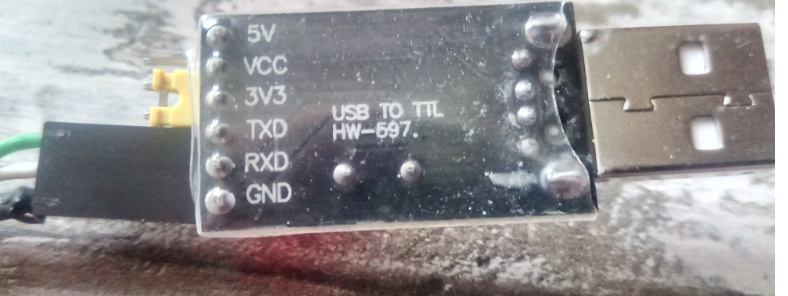
Just connect the TTL-Adapter with Jumper Wires to the Pins P0 and P1 of your board and select the right Com Port with Putty and set the right baudrate in Putty. Don't forget to connect the Adapter to the ground of the Pycom Board and select 3.3V on the adapter with the bridge!

Hello! It looks like you're interested in this conversation, but you don't have an account yet.
Getting fed up of having to scroll through the same posts each visit? When you register for an account, you'll always come back to exactly where you were before, and choose to be notified of new replies (either via email, or push notification). You'll also be able to save bookmarks and upvote posts to show your appreciation to other community members.
With your input, this post could be even better 💗
Register Login