Trouble shooting guide Pycom Miner
-
Hello,
I'm experienced with Helium and have successfully setup 2 Pycom Miners. I made a list of issues I ran into and how I fixed them!- I guess a lot of Miners will be shipped "damaged" (the PCB snapped out) like seen in this post: https://forum.pycom.io/topic/7668/unable-to-assert-location-helium-hotspot/5?_=1660984068047
--> You will need to open up the Miner and snap back in the PCB. Unfortunately the Pycom Miner is built rather fragile and also other parts could be lose. - Download the Pycom Maker App for Android or IOS (adding a Miner to the Blockchain will only work with Pycom Maker App)
- You need to deep Link your existing Helium Wallet with the Maker App (this can be done at the start of the App) -> your Miner will be registered on your selected linked Wallet.
- You need to follow the App instructions and pair the Pycom Miner with your local Wi-Fi. If it does NOT find your WI-FI it is probably not compatible. You need to setup a second Wi-Fi for example with a Mango-Router. You can try various 2.4 G protocols and 5G as well (I needed to do this). The Bluetooth of the Pycom Miner is activated on start-up automatically for 30 mins (you don’t need to press any buttons)
- Now you can register the Miner to the Blockchain (The maker App will call your “normal” Helium Wallet and add it there)
- Every other step like setting the location or transferring the hotspot you can do with the “normal” Helium App and you no longer need the Maker App (which can do pretty much nothing and is instable as hell) --> you can uninstall it now.
- If anything does not work try it multiple times!
I hope this helps someone
- I guess a lot of Miners will be shipped "damaged" (the PCB snapped out) like seen in this post: https://forum.pycom.io/topic/7668/unable-to-assert-location-helium-hotspot/5?_=1660984068047
-
@Christian-Wolf
8. The Maker App needs Chrome as the standard browser on Android. Neither Firefox, nor the Samsung Browser work but only return a 404 error page. -
Do you have any idea how the dashboard works?
I can't seem to login with any details, It just hangs on the login page.
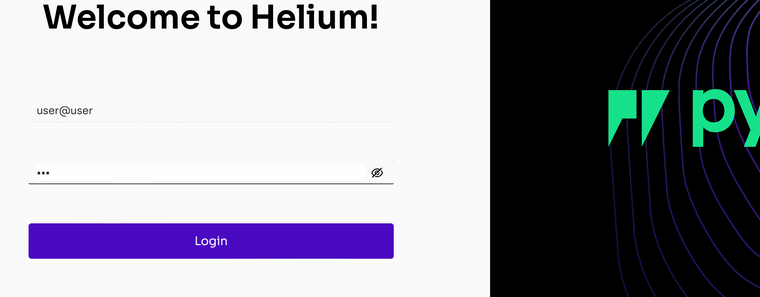
-
@Nathan-Moss I did not try. What I would test is:
user, user
admin, admin,
root, root,
pycom, pycom -
Hello,
Username: admin
The password is the 3 word name of the miner, all lowercase and with a dash between the words.
Example: zany-lavender-chameleon
-
@Nathan-Moss Can you share the url?
-
@Bram-Djakaria It's locally hosted on the miner.
Find its IP address and enter it into the URL bar. For example, I can access my miner by going to http://192.168.1.25
-
@Nathan-Moss Many thanks for the info. I found the IP-address, but I can’t access. I get a black page.
-
@Christian-Wolf When the Maker App asks for Permission to assert location, decline that and press next. That did the trick for me.
-
@Bram-Djakaria Yeah, I get a pause then this...
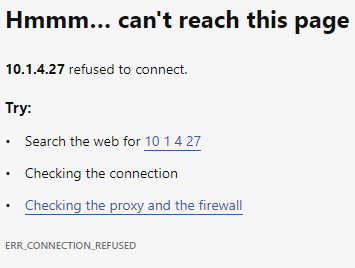
I wonder what we're missing. I'd love to be able to see what's going on with my miner.
Hello! It looks like you're interested in this conversation, but you don't have an account yet.
Getting fed up of having to scroll through the same posts each visit? When you register for an account, you'll always come back to exactly where you were before, and choose to be notified of new replies (either via email, or push notification). You'll also be able to save bookmarks and upvote posts to show your appreciation to other community members.
With your input, this post could be even better 💗
Register Login