Lopy - Arduino Serial Communication

-
Introduction
Between the Arduino Uno and the Pycom Lopy a connection can be made through an UART bus, a bi-directional serial communication.
The result on the Lopy to test the connection:
# Console output:
PYB: soft reboot
==========Starting main.py==========
Main start
None
b'Lopy, did you say: Hello Arduino?\r\n'
b'Lopy, did you say: Hello Arduino?\r\n'
b'Lopy, did you say: Hello Arduino?\r\n'
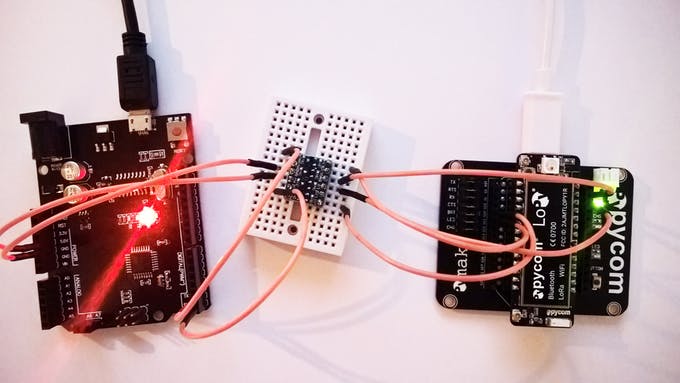
This is how it looks all wired up (sorry for the colouring of the wires):
Components
For the Arduino we will use an Arduino Uno with the ATmega328P chip.
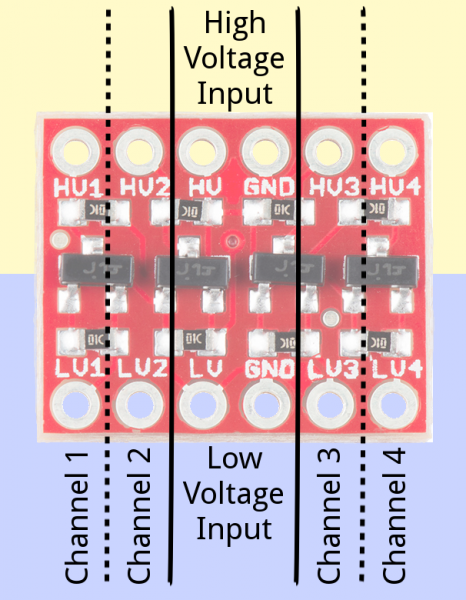
Please note that the Lopy IO-pins are not 5V tolerant, so that's why we need the logical level converter. This basically converts the 5V down to the logic level of the Lopy, which is 3.3V, and the other way around.
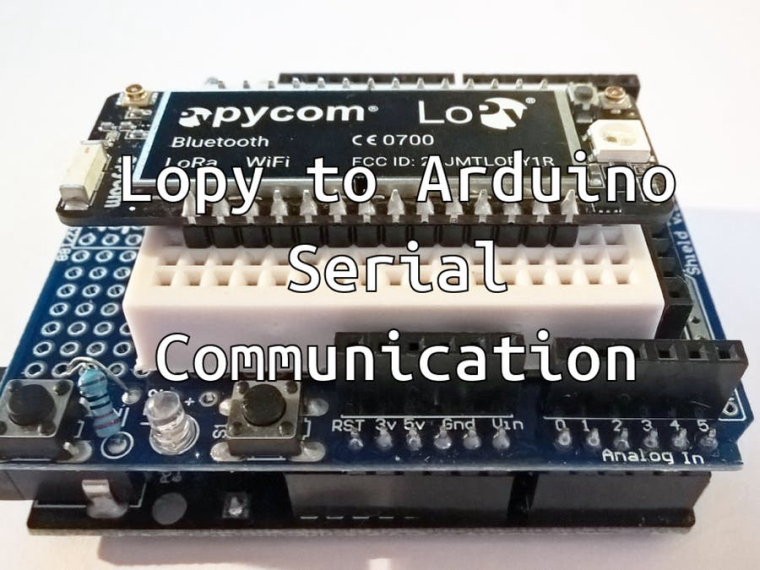
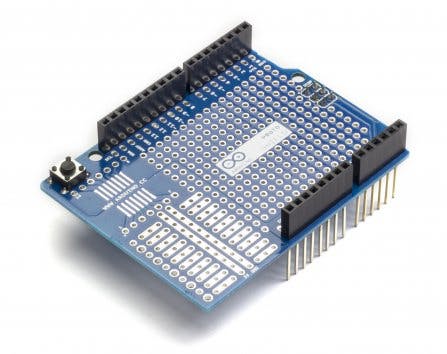
The protoshield can be used if you want to attach both devices together for prototyping or a bit more permanent by soldering. The shield attaches to the Arduino Uno and provides a nice way to integrate the Lopy with the Arduino. You can also use a breadboard for testing purposes of course.
Code Fragments
 # boot.py
"""Enable serial communication with the Lopy.
Disable LED.
"""
import os

import pycom
import machine
from network import WLAN

# Configure first UART bus to see the communication on the pc
uart = machine.UART(0, 115200)
os.dupterm(uart)
# Configure second UART bus on pins P3(TX1) and P4(RX1)
uart1 = UART(1, baudrate=9600)

wl = WLAN()

pycom.heartbeat(False)

machine.main('main.py')
print('==========Starting main.py==========\n')
# main.py """Sends a string to the Arduino. Waits a bit and then reads the answer from the Arduino. """ import time print('Main start') while True: uart1.write('Hello Arduino') time.sleep(1) print(uart1.readline()) # read the response from the Arduino time.sleep(1)# arduino.ino void setup() { Serial.begin(9600); } void loop() { if (Serial.available() > 0){ // at least one byte is available from the Lopy // read the message from the Lopy String msg = Serial.readStringUntil('\n'); // and repeat the message back Serial.println("Lopy, did you say: " + msg + "?"); } }Connecting the Parts
Connect the GND and 3.3V from the Lopy to the low side of the LLC, to GND and LV respectively.
The Arduino has it's 5V and GND connected on the high side on corresponding pins.
RX and TX pins for serial communication are one-way. This means that the TX pin of the Arduino needs to be connected to the RX pin of the Lopy and vice versa. Again the Lopy pins go on the low side of the LLC and the Arduino pins on the high voltage side. The ports are linked straight from the low side to the high side, so which of the 4 channels you use doesn't matter.
Power up both the Lopy and the Uno. Connect the Lopy with an usb-cable from your pc to the expansion board. Connect the Uno to a 5V usb-adapter.
Open up PyMakr or a telnet client and connect your Lopy.
The Lopy will start with its boot script, initializing the two UART buses. The main script will then every second send a message to the Uno. If everything is wired up correctly you should see the Uno talking back, cool!

Hello! It looks like you're interested in this conversation, but you don't have an account yet.
Getting fed up of having to scroll through the same posts each visit? When you register for an account, you'll always come back to exactly where you were before, and choose to be notified of new replies (either via email, or push notification). You'll also be able to save bookmarks and upvote posts to show your appreciation to other community members.
With your input, this post could be even better 💗
Register Login