Pytrack + FiPy setup on Win7
-
Hi,
I'm trying to install the Pytrack firmware as a first step to getting my new FiPy up and running. I followed the instructions from https://docs.pycom.io/chapter/pytrackpysense/installation/firmware.htmlUsing Zadig, I got the firmware driver installed -
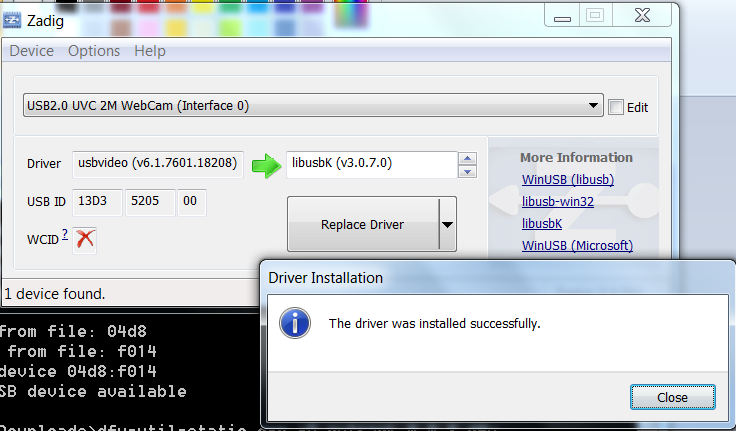 .
.However, when I later try to dfu-util to install the firmware, I get the below error:
C:\Users\Sandip\Downloads>dfu-util-static.exe -D pytrack_0.0.8.dfu
dfu-util 0.8Copyright 2005-2009 Weston Schmidt, Harald Welte and OpenMoko Inc.
Copyright 2010-2014 Tormod Volden and Stefan Schmidt
This program is Free Software and has ABSOLUTELY NO WARRANTY
Please report bugs to dfu-util@lists.gnumonks.orgMatch vendor ID from file: 04d8
Match product ID from file: f014
Cannot open DFU device 04d8:f014
No DFU capable USB device availableI am on Win 7.
Thanks in advance for your assistance!
~Sandip
-
@sandipg said in Pytrack firmware install fails:
Hi Sandip,
We're looking to simplify this process, instead of Zadig could you try the Pytrack DFU driver I posted a while ago? http://metavurt.net/software/drivers/PyTrack_DFU.zip
Also as explained in the update instructions
https://docs.pycom.io/chapter/pytrackpysense/installation/firmware.htm
make sure you are pressing the button on the Pytrack before connecting it to USB and then run dfu-util within 7 seconds of doing so (it's best of have the command typed in and ready to press Enter)
Let me know if this works for you. Thanks!
-
-
A short follow-up question:
I'm proceeding with updating the firmware on the FiPy module (with PyTrack) as described in https://docs.pycom.io/chapter/gettingstarted/installation/firmwaretool.html#secondWhen I run the Pycom firmware update tool, it says I need to conect the device to the computer using a 3.3V USB-UART adapter. I'd like to know the specifications of the adapter that should be used, for ex. 4-Pin, 6-Pin etc..
Even better would be a link to the product since I will have to buy it separately now.
~Sandip
-
Hi @sandipg
The PyTrack acts the USB-UART adapter in your case, you don't need anything external.
Sorry if the text caused confusion, I'll mark that for a future clarification.
-
Hi @jmarcelino ,
Thanks for your response. When I proceed with the Firmware update, it fails due to no connections.
First, I cannot see the COM port in the drop down list (no device is detected when I connect the Pytack+Fipy via USB to the computer):
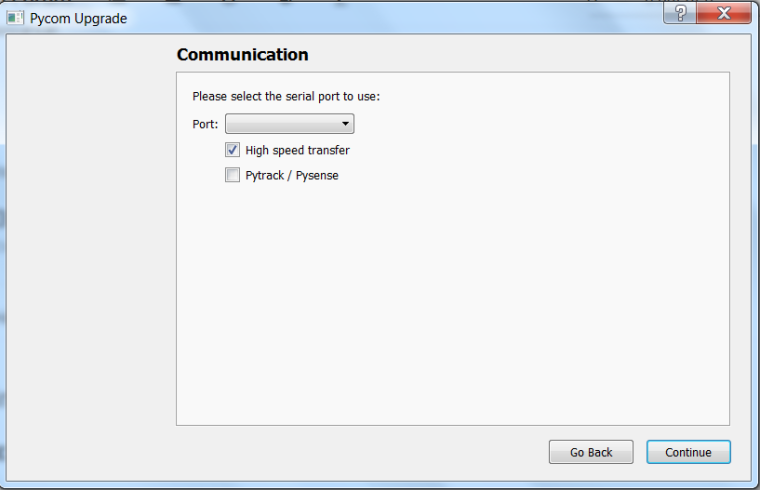
I select FiPy in the next Window, which leads to:
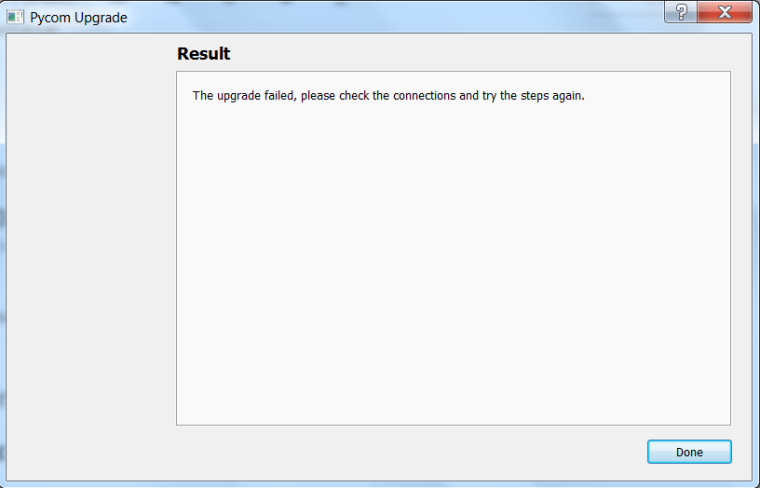
Please let me know how to get this up and running. Thanks!
~Sandip
-
@sandipg
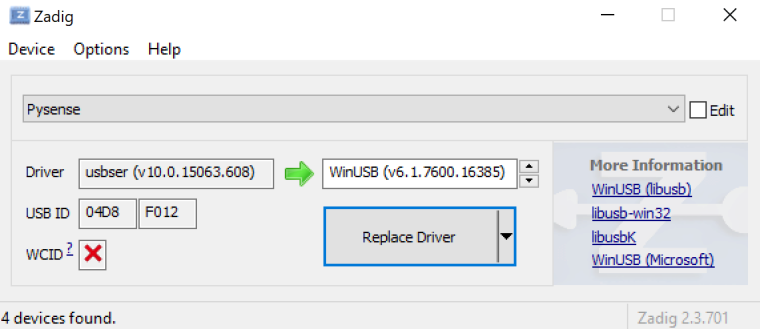
Can you check if you have the right driver? Maybe it changed where it shouldn't.After connecting the Pytrack normally (don't press the button) run Zadig again, go to Options -> enable "List All Devices" then choose Pytrack from the drop down list.
Should show something like this. If not please post what driver is show in the "Driver" box.
-
Here is the screenshot (The driver is missing)
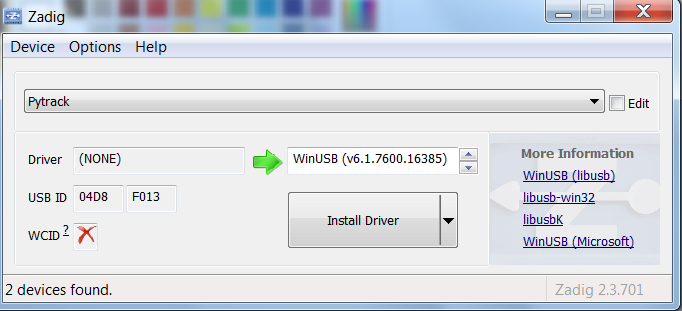
-
@sandipg
Thanks, I think you may be missing the Windows 7 drivers?Please follow the steps at:
https://docs.pycom.io/chapter/pytrackpysense/installation/drivers.html -
Thanks @jmarcelino .
I'd like to know the general order of installation: First I updated the firmware on the PyTrack, followed by the same on the FiPy as described in https://docs.pycom.io/chapter/gettingstarted/installation/firmwaretool.html#second
Is this the right way?
Or do I need to follow the steps in Section 4.2 and install also the software/libraries on the PyTrack before moving on to the FiPy?
Whenever I follow the first option (as laid out in Ch 1), I cannot see the COM port of the PyTrack+FiPy when I run the Pycom Firmware Update tool. (Even after installing the Win 7 driver)
Has anyone managed to get PyTrack + FiPy running in Windows? If yes, please share what you did.
Thanks!
-
@sandipg
Thank you for your patience, I do realise this can be confusing. The correct order for Windows 7 should be:You should have a new COM port on Device Manager at this point.
-
Unplug the devices. Physically put the Fipy onto the Pytrack and plug back into your USB port
-
Install and run the Pycom Firmware Updater (which currently only updates the the FiPy, LoPy, etc it doesn't update expansion boards like the Pytrack/Pysense)
-
Select the COM port which appeared in step 2
-
-
@jmarcelino If you are working on a HowTo, add this, please:
If your Pytrack is not detected on Windows 7 as a COM device after a pytrack firmware update, deinstall the dfu drive.
If you are from spain an like to give us the Windows users a xmas gift, you still have some days to set up a minimalistic linux or *BSD virtual machine with all needed drivers for pytrack/pysense updates. Booting a VM is much easier than doing all this strange dfu driver Voodoo on windows.
-
@jmarcelino Thanks again.
It works well until Step 3. With the FiPy on, Win 7 fails to detect the board (no COM port is visible). When I unplug the FiPy and connect just the PyTrack board, I can see the COM port. To double check if the firmware is still installed, I ran Zadig with just the PyTrack connected and this time it shows the driver installed.
So now the problem is that when the FiPy is connected to PyTrack, Win7 fails to detect the board (no COM port is visible).
How do I proceed?
-
@sandipg
Sorry for all basic question but can I ask if the FiPy is plugged the right way around (with the LED and reset button on top of the Pytrack USB connector) and all pins are correctly seated? -
How do I proceed?
Your pytrack is still deteced as an dfu and not com device. The dfu device will be visible only for 7 seconds. Open device manager, pug out pytrack, plug in again. If you see your device pop up as a dfu device:
- open the device manger
- select show all devices (or be really quick, the device will be visible for 7 seonds)
- open dfu devices
- right click on the pytrack device
- select properties/details/drivers
- click on deinstall
-
@crumble
Really appreciate you trying to help but in this case @sandipg already seen the Pytrack as a COM port device, it's just when he tries with the FiPy.Also there is no need to remove the DFU driver as it's very convenient to have it for future upgrade. I can assure you it works without doing so, the DFU driver expects a different USB ID which only active when you press the button.
So please don't remove the DFU driver that is not really a valid long term solution. Perhaps it worked for you in a specific case, maybe if you used Zadig it set the regular device with the wrong driver, but if you use the drivers I posted below this should not happen.
-
@jmarcelino Yes it is plugged in correctly. All the pins are fit snugly.
-
@sandipg Did this work for you?
I am having the same issue. PyTrack is seen as a COM device. However, we I add the FiPy module to PyTrack I cannot see it as a COM device.
-
@sat Yes it worked when I used the drivers provided by @jmarcelino
-
@sandipg Make sure you have the device in DFU mode...
I tryied this many times sometimes It took me like 10 try to get the code in... also make sure you are in the right folder but it looks like you are in the right folder...=======================================
Using DFU-util with Pytrack and Pysense
In order to put Pyrack or Pysense in DFU mode, press and hold the button on the Pytrack/Pysense board whilst powering on the board (connecting the USB cable).
Press the button and keep it held
Next plug-in the USB cable to the host computer and wait 1 second before releasing the button.
After this you will have approximately 7 seconds to run the DFU-util tool. -> This step you might have to do many times for it to work...https://docs.pycom.io/chapter/pytrackpysense/installation/firmware.html
Hello! It looks like you're interested in this conversation, but you don't have an account yet.
Getting fed up of having to scroll through the same posts each visit? When you register for an account, you'll always come back to exactly where you were before, and choose to be notified of new replies (either via email, or push notification). You'll also be able to save bookmarks and upvote posts to show your appreciation to other community members.
With your input, this post could be even better 💗
Register Login