Welcome to the Pycom forum Forum
    • \[\[global:header.categories\]\]
    • \[\[global:header.recent\]\]
    • \[\[global:header.tags\]\]
    • \[\[global:header.popular\]\]
    • Login

    Explore Pybytes | Official Documentation | Report a Firmware Bug/Issue | GitHub

    Pymakr 1.1.13 does not work with VSCode 1.60.0
    Scheduled Pinned Locked Moved Software Tools
    24 Posts 11 Posters 197 Views 11 Watching
    Loading More Posts
    • Oldest to Newest
    • Newest to Oldest
    • Most Votes
    Reply
    • Reply as topic
    Log in to reply
    This topic has been deleted. Only users with topic management privileges can see it.
    • M Offline
      Meric NESSANGE @robert-hh
      last edited by

      Hi @robert-hh.
      till 1.1.12 ?

      robert-hhR 1 Reply Last reply Reply Quote 0
      • robert-hhR Offline
        robert-hh @Meric NESSANGE
        last edited by

        @Meric-NESSANGE If it ever worked, roll back to these versions. If you never used it, my personal opinion would be to stay away from it. According to the complaints in the forum, Pymakr has problems with almost every update of VSCode.

        G M 2 Replies Last reply Reply Quote 0
        • G Offline
          g0hww @robert-hh
          last edited by

          @robert-hh It seems to be permanently broken with Atom, which was when I last checked, apparently considered to be abandoned. Everything is falling apart around here.

          1 Reply Last reply Reply Quote 0
          • M Offline
            Meric NESSANGE @robert-hh
            last edited by Meric NESSANGE

            @robert-hh
            Thanks for answer.
            Yes, it barrely worked, but I update VSCode in order to solve some connexion issues.
            Noob error : I don't notice my previous version of VSCode.

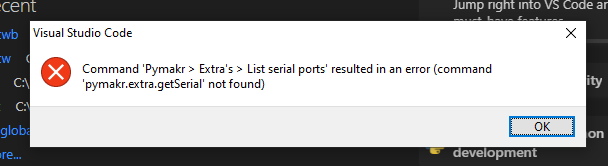
            ok, rolled back to a supposed functionnal version :
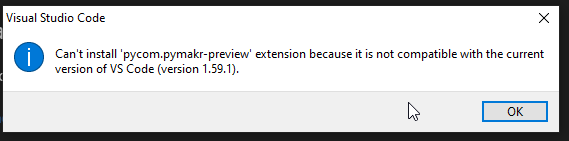
            25f7c008-2475-4587-8c1d-538a02f1cb6e-image.png
            šŸ¤¦ā€ā™‚ļø

            ok, let's do it without the preview module :
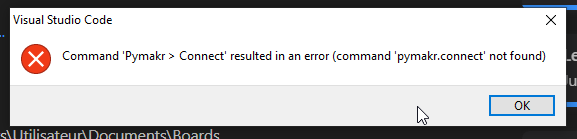
            68551621-982a-416f-a84e-f75aa128390f-image.png
            šŸ¤¦ā€ā™‚ļø

            @g0hww It seems to be permanently broken with Atom
            šŸ¤¦ā€ā™‚ļø It was my B-plan.

            Anybody for a C-plan to be able to flash a board ?

            Everything is falling apart around here.
            Same sensation.
            And it's worrying.
            Really.

            robert-hhR 1 Reply Last reply Reply Quote 0
            • robert-hhR Offline
              robert-hh @Meric NESSANGE
              last edited by

              @Meric-NESSANGE To upload the firmware you can always use the Pycom updater tool. And to upload code to the device you can use:

              • ftp (by WiFi)
              • mpremote by USB
                ....

              As terminal emulator you can use putty (windows), screen (mac), screen or picocom (Linux)
              As IDE you can as well try Thonny.

              M 1 Reply Last reply Reply Quote 0
              • M Offline
                Meric NESSANGE @robert-hh
                last edited by Meric NESSANGE

                Hi @robert-hh,

                OK, I'd some unsuccesful try.

                Please, can you crosscheck my parameters :

                • ftp (by WiFi)

                  • connect the PC to the micro wifi
                    • ssid : sipy-wlan-xxxx
                    • pw : www.pycom.io
                  • host name : 192.168.4.1
                  • port : 23
                  • user : micro
                  • pw : python
                  • protocol : FTP (w/o encryption)
                • mpremote

                  • succesfully installed with pip
                  • got a "no device found" in the cmd panel. Seems not recognized as an application. Any idea ?

                Thanks.

                robert-hhR 1 Reply Last reply Reply Quote 0
                • robert-hhR Offline
                  robert-hh @Meric NESSANGE
                  last edited by

                  @Meric-NESSANGE Ftp must be unencrypted and limited to 1 connection.

                  for mpremote you have to specify e.g. /dev/ttyUSB0 as interface. Shortcut is u0. E.g.

                  mpremote connect /dev/ttyUSB0 ls

                  or

                  mpremote u0 ls

                  For a windows machine, you have to specifiy the com port.

                  mpremote connect com3 ls

                  See also mpremote --help.

                  M 1 Reply Last reply Reply Quote 0
                  • M Offline
                    Meric NESSANGE @robert-hh
                    last edited by Meric NESSANGE

                    @robert-hh

                    connected !!!
                    --help was the enabler ^^
                    Thanks.

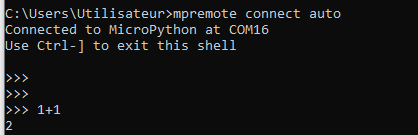
                    Unfortunately, not any ">>>" in the prompt. So no way to do anything...
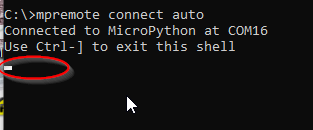
                    80c6e3b4-f1c0-4141-90a0-ee5ec987faeb-image.png

                    M robert-hhR 2 Replies Last reply Reply Quote 0
                    • M Offline
                      Meric NESSANGE @Meric NESSANGE
                      last edited by

                      EDIT : OK, wiring issue !

                      58043392-e309-470a-a735-2604fd037416-image.png

                      I'M CONNECTED ON A MICROPYTHON ^^

                      J 1 Reply Last reply Reply Quote 0
                      • robert-hhR Offline
                        robert-hh @Meric NESSANGE
                        last edited by

                        @Meric-NESSANGE looks like the wrong com port.

                        1 Reply Last reply Reply Quote 0
                        • J Offline
                          jchernandez @Meric NESSANGE
                          last edited by

                          @Meric-NESSANGE Hello, how can I upload files to a pycom board through mpremote? My atom and pymakr updated automatically and now no working anymore :/

                          robert-hhR 1 Reply Last reply Reply Quote 0
                          • robert-hhR Offline
                            robert-hh @jchernandez
                            last edited by robert-hh

                            @jchernandez mpremote has a --help option. For copying files, you have to use the cp subcommand. So as example for copying a file to the board:

                            mpremote connect /dev/ttyUSB0 cp myfile.py :myfile.py
                            or just
                            mpremote connect /dev/ttyUSB0 cp myfile.py :
                            for using : as a shortcut for the baord's local directory and . for the PC's one. Copying back similar as:
                            mpremote connect /dev/ttyUSB0 cp :myfile.py myfile.py
                            or
                            mpremote connect /dev/ttyUSB0 cp :myfile.py .

                            The device names at Windows are similar COM3, COM4, .... Shortcuts are:
                            u0 for connect /dev/tty/USB0

                            Unfortunately the mount command of mpremote does not work with the PyCom version of MicroPython. That version is too old.

                            To run a local script without copying it to the board use the run command. If you do not enter a command after the connect, mpremote opens a REPL session.

                            And before I forget it: With Pycom devices and WiFi active you can always use FTP for copying files. A good FTP client is FileZilla. But some file managers allow using FTP paths as well. User name is micro, password is python.

                            J B 2 Replies Last reply Reply Quote 1
                            • J Offline
                              jchernandez @robert-hh
                              last edited by

                              This post is deleted!
                              1 Reply Last reply Reply Quote 0
                              • B Offline
                                Bernice McCarthy Banned @robert-hh
                                last edited by Bernice McCarthy

                                @robert-hh said in Pymakr 1.1.13 does not work with VSCode 1.60.0:

                                @jchernandez mpremote has a --help option. For copying files, you have to use the cp subcommand. So as example for copying a file to the board:

                                mpremote connect /dev/ttyUSB0 cp myfile.py :myfile.py
                                or just
                                mpremote connect /dev/ttyUSB0 cp myfile.py :
                                for using : as a shortcut for the baord's local directory and . for the PC's one. Copying back similar as:
                                mpremote connect /dev/ttyUSB0 cp :myfile.py myfile.py
                                or
                                mpremote connect /dev/ttyUSB0 cp :myfile.py .

                                The device names at Windows are similar COM3, COM4, .... Shortcuts are:
                                u0 for connect /dev/tty/USB0

                                Unfortunately the mount command of mpremote does not work with the PyCom version of MicroPython. That version is too old.

                                To run a local script without copying it to the board use the run command. If you do not enter a command after the connect, mpremote opens a REPL session cat mario

                                And before I forget it: With Pycom devices and WiFi active you can always use FTP for copying files. A good FTP client is FileZilla. But some file managers allow using FTP paths as well. User name is micro, password is python.

                                you can review the .py file, i think it has that problem

                                1 Reply Last reply Reply Quote 0

                                Hello! It looks like you're interested in this conversation, but you don't have an account yet.

                                Getting fed up of having to scroll through the same posts each visit? When you register for an account, you'll always come back to exactly where you were before, and choose to be notified of new replies (either via email, or push notification). You'll also be able to save bookmarks and upvote posts to show your appreciation to other community members.

                                With your input, this post could be even better šŸ’—

                                Register Login
                                • 1
                                • 2
                                • 2 / 2
                                • First post
                                  Last post

                                Pycom on Twitter

                                Pycom